Cards List - Managing Your Flashcards
The Cards List screen is your deck management hub. View all cards at once, search, reorder, edit, delete.
Opening Cards List
From the home screen:
- Tap "⋮" on a deck to open the deck menu.
- Select "List Cards"
You'll see all your cards in a scrollable list/grid view.
Card List Display
Each card shows:
- # - Card number, ordinal position
- Term - front of card
- Definition - back of card
- Edge Bars (left or right) - Colored bars indicate card status
- Max lines - Configurable in Deck Settings
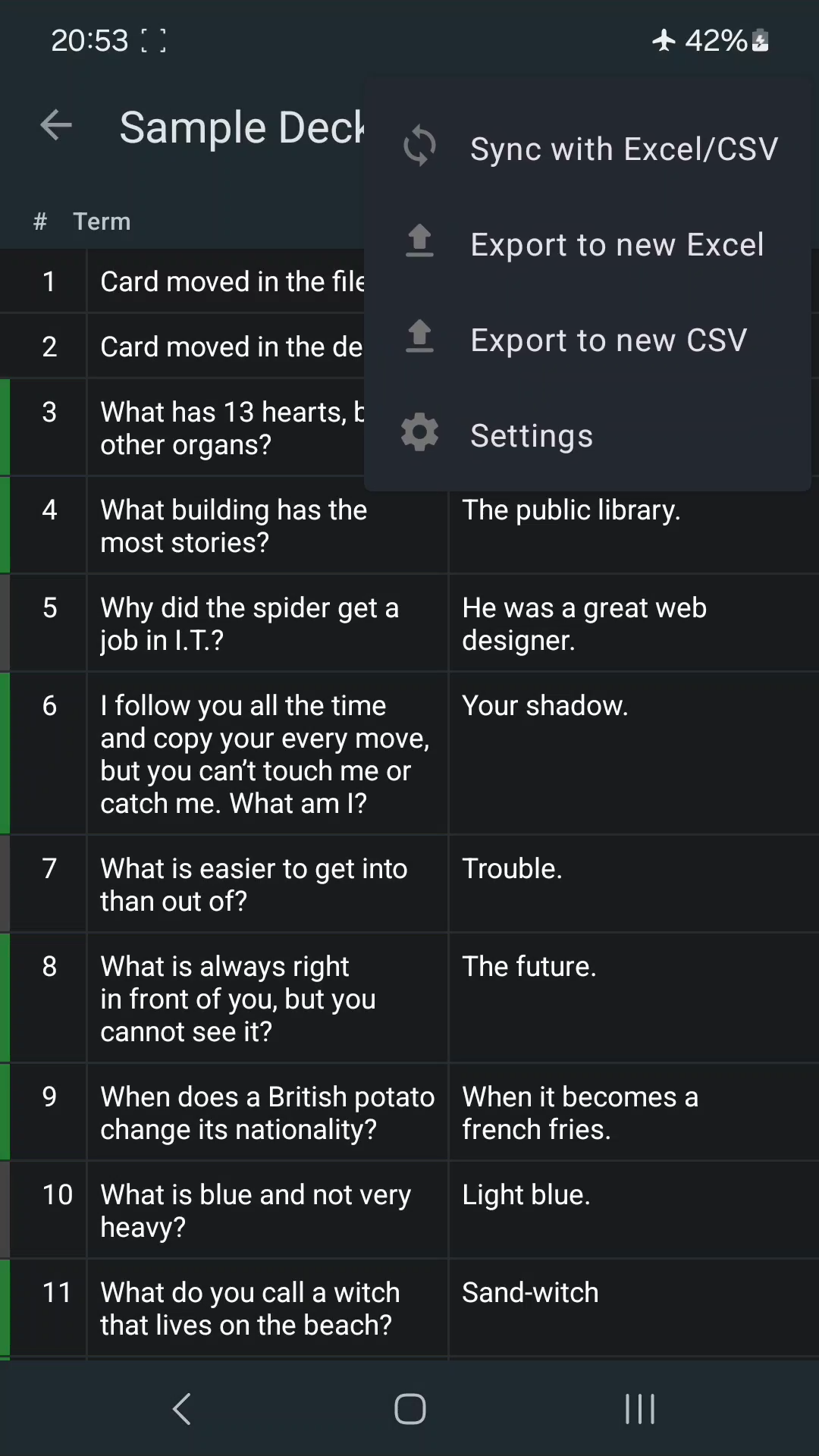
Toolbar Actions
- 🔍 Search (Premium feature)- Filter cards by term or definition text
- + Add Card - Add a new card at the of deck
- ⋮ More Menu:
- Sync with Excel/CSV
- Export to Excel
- Export to CSV
- ⚙ Settings
Card Actions
Tap a Card
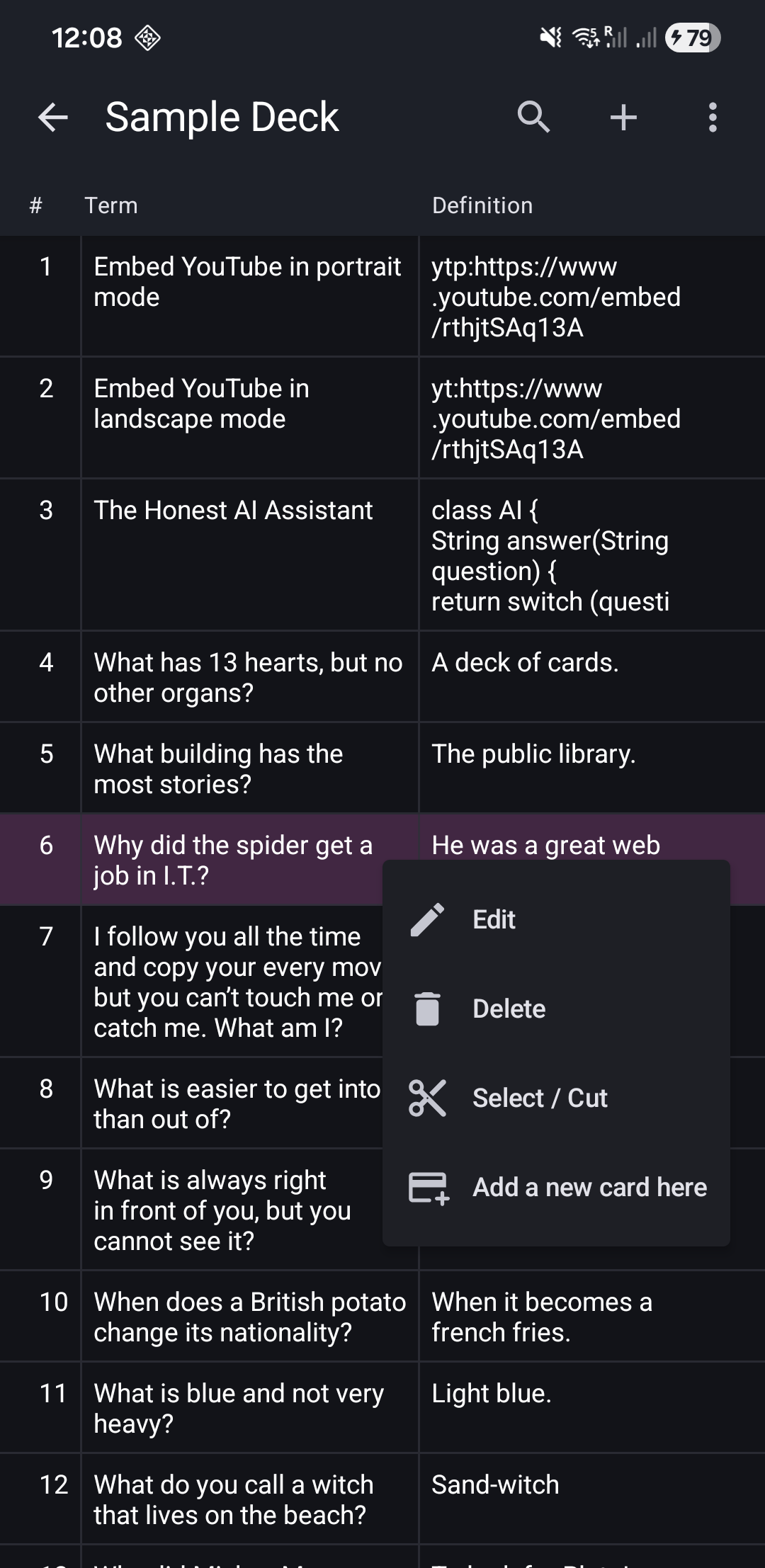
Tap a Card opens the card's action menu:
- Edit - Modify term/definition (see Editing Cards)
- Delete - Remove this card
- Select / Cut - Enter multi-select mode (see Multi-Select)
- Add a new card here - Insert a new card after this position
Long-Press a Card
Long-Press a Card select the card and switch to the multi-select mode. TODO
Swipe a Card (Left or Right)
Swipe to delete - Card disappears with undo option
See Deleting Cards for details.
Card Operations
The Cards List supports these operations:
| Operation | How To | Details |
|---|---|---|
| Popup Menu | Tap | Editing Guide |
| Reorder | Long-press & drag | Reordering Guide |
| Select | Long-press | Multi-Select Guide |
In the selection mode:
| Operation | How To | Details |
|---|---|---|
| Select next card | Tap | Editing Guide |
| Popup Menu | Long-press | Reordering Guide |
Related Topics
- Editing Cards - Modify card content
- Reordering Cards - Drag and drop to change sequence
- Deleting Cards - Remove cards with undo
- Multi-Select Operations - Bulk actions
- Formatting Cards - Use HTML for rich content
- Study Mode - Learn your cards
- Browse Mode - View cards without studying