📁 All Decks
Your complete deck library with folder organization. Navigate through folders and subfolders to find any deck.
Topbar Actions
On the topbar, you can see the following actions:
- 🔍 Search (Premium) - Find decks by name across all folders
- "+" button to create a new deck
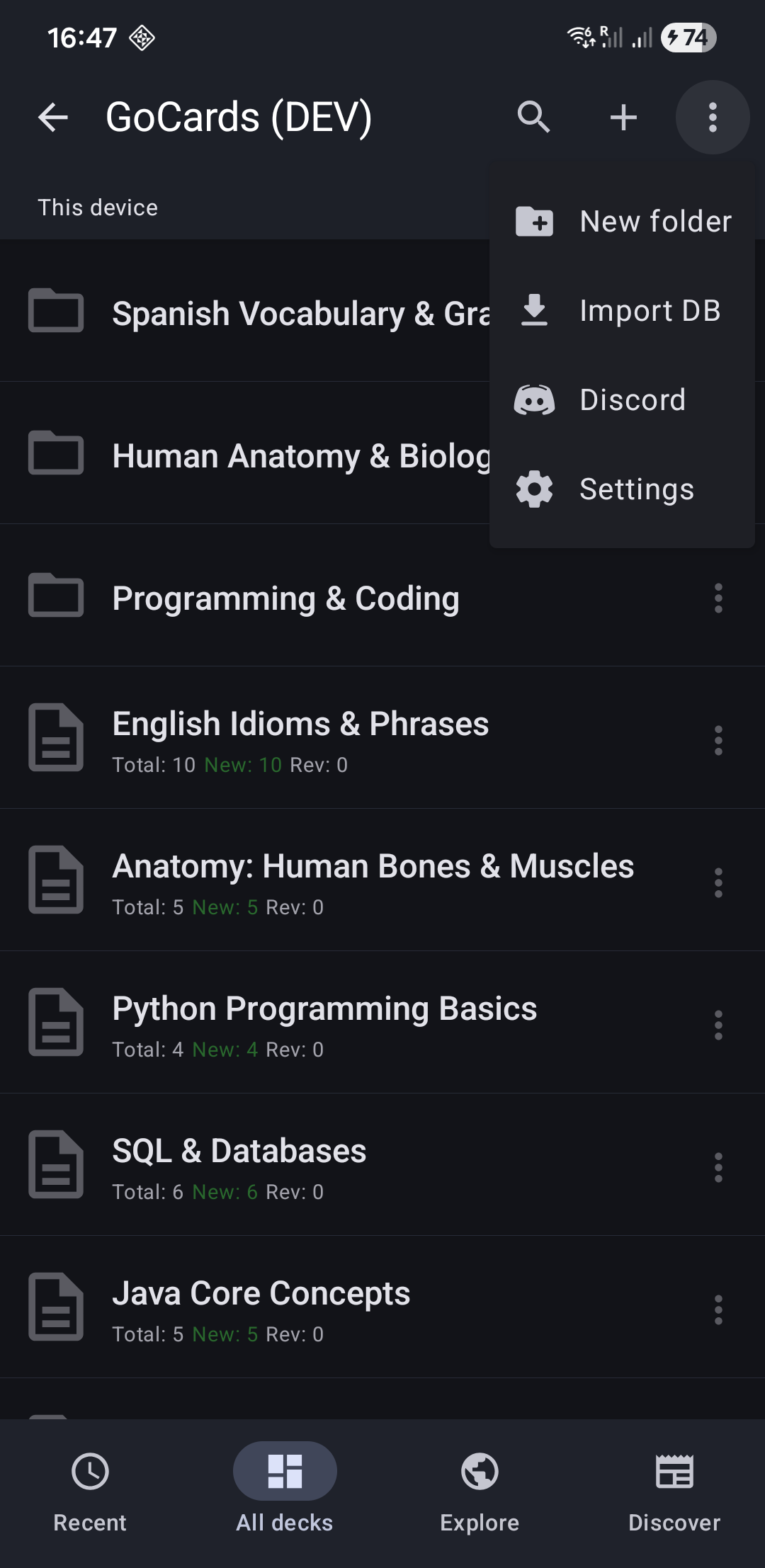
- Tap "⋮" in the topbar in the top-right to open the menu with these options:
- New Folder (Premium)
- Import Excel
- Import CSV
- Import DB
- Settings
Deck Menu Actions
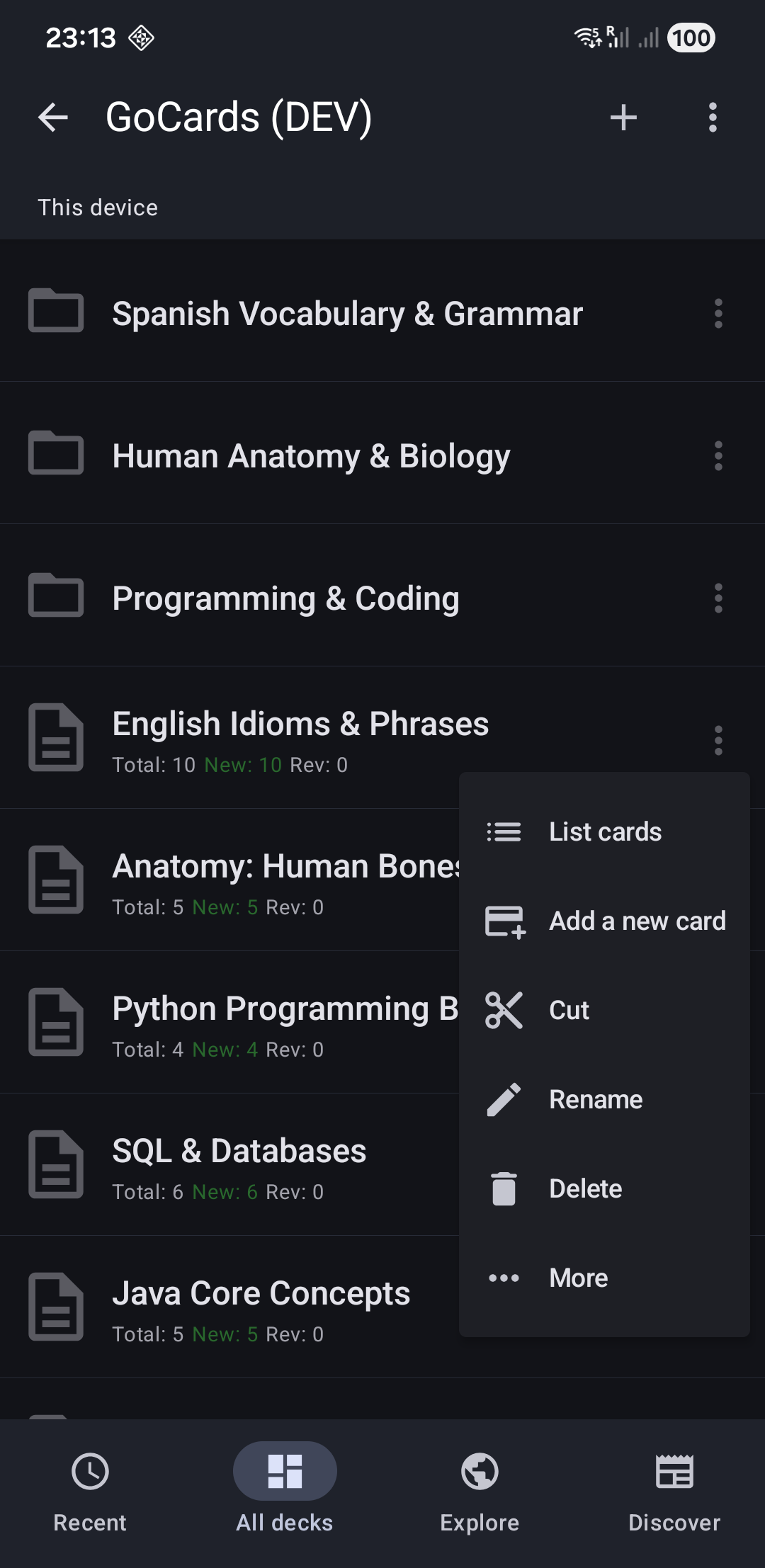
Tap "⋮" on the deck to open the menu with these options:
- Browse (Premium) - View-only carousel (no grading)
- List Cards - See all cards in a list
- Add a new card - Create a new card quickly at the end
- Cut - Move deck to a different folder
- Rename - Change the deck name
- Delete - Remove deck and all its cards (with confirmation)
- Tap More in the deck menu to access:
- Sync with Excel/CSV - Connect to an existing Excel/CSV file
- Export to new Excel - Save deck as .xlsx
- Export to new CSV - Save deck as .csv
- Export DB - Backup deck as .db file
- Deck Settings - Configure auto-sync, forgotten card limits, etc.
Folder Menu Actions
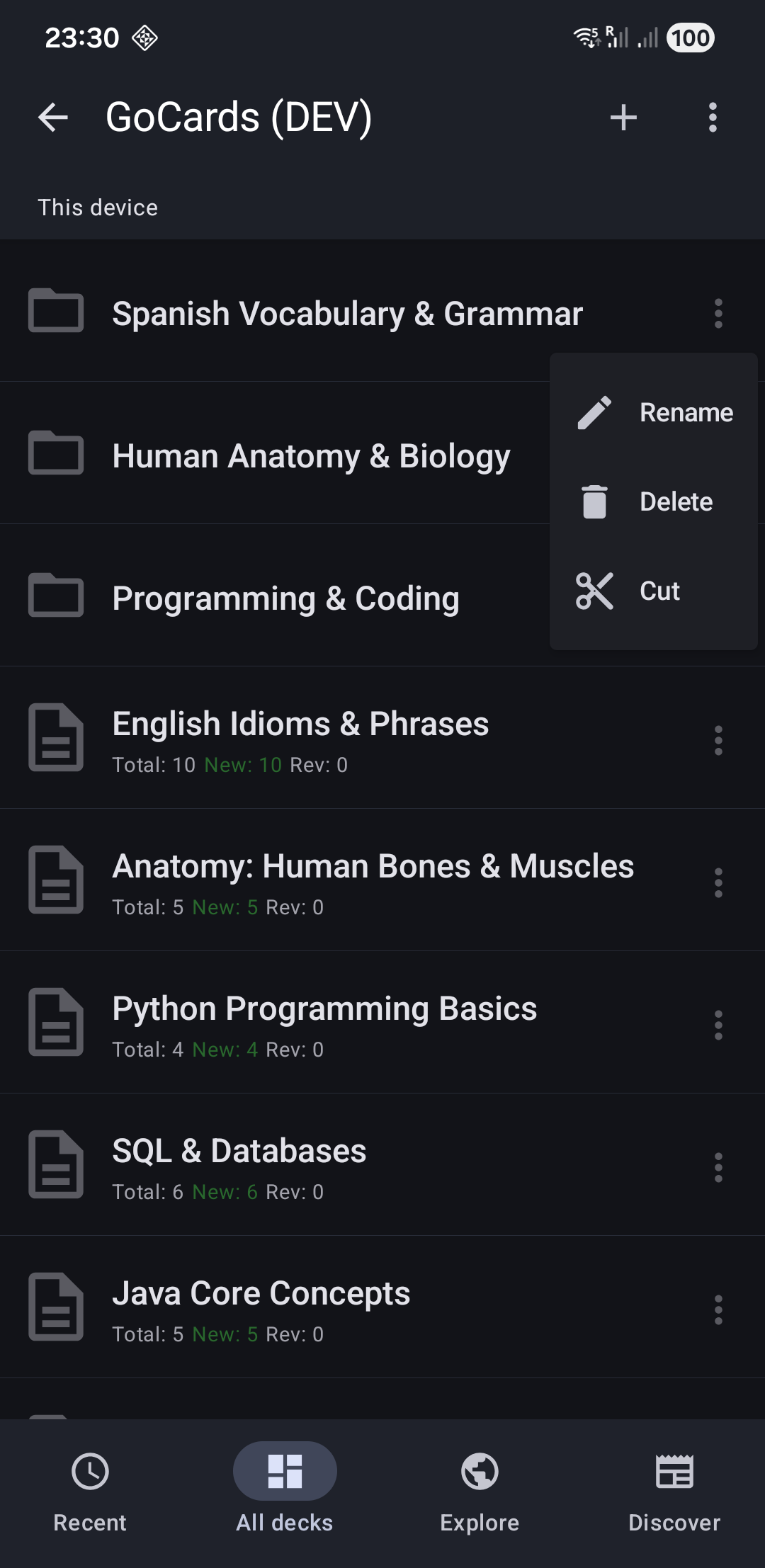
Tap "⋮" on the folder to open the menu with these options:
- Rename - Change folder name
- Delete - Remove folder with all desks (with confirmation)
- Cut - Move folder to a different location
Next Steps
- Learn about Study Mode to start learning
- Explore Cards List to manage your cards
- Set up File Sync to edit on your computer (Premium)