Database Backup & Restore
Database backups preserve everything all decks, cards, settings, and review history.
Why Back Up Your Database?
- Complete backup - Saves all decks, progress, and settings in one file
- Device transfers - Move your data to a new phone seamlessly
- Safety net - Protect your data before syncing with Excel/CSV or making major changes
Exporting Your Database
To export a database:
- Go to the home screen (Recent Decks or All Decks tab)
- Tap deck → More (⋮) → Export DB
- Choose save location
What's Included in the Export
The exported .db file contains:
- ✅ All cards in the deck
- ✅ Card content (terms and definitions)
- ✅ Learning progress (review intervals, memorization status)
- ✅ Deck settings and preferences
Importing a Database
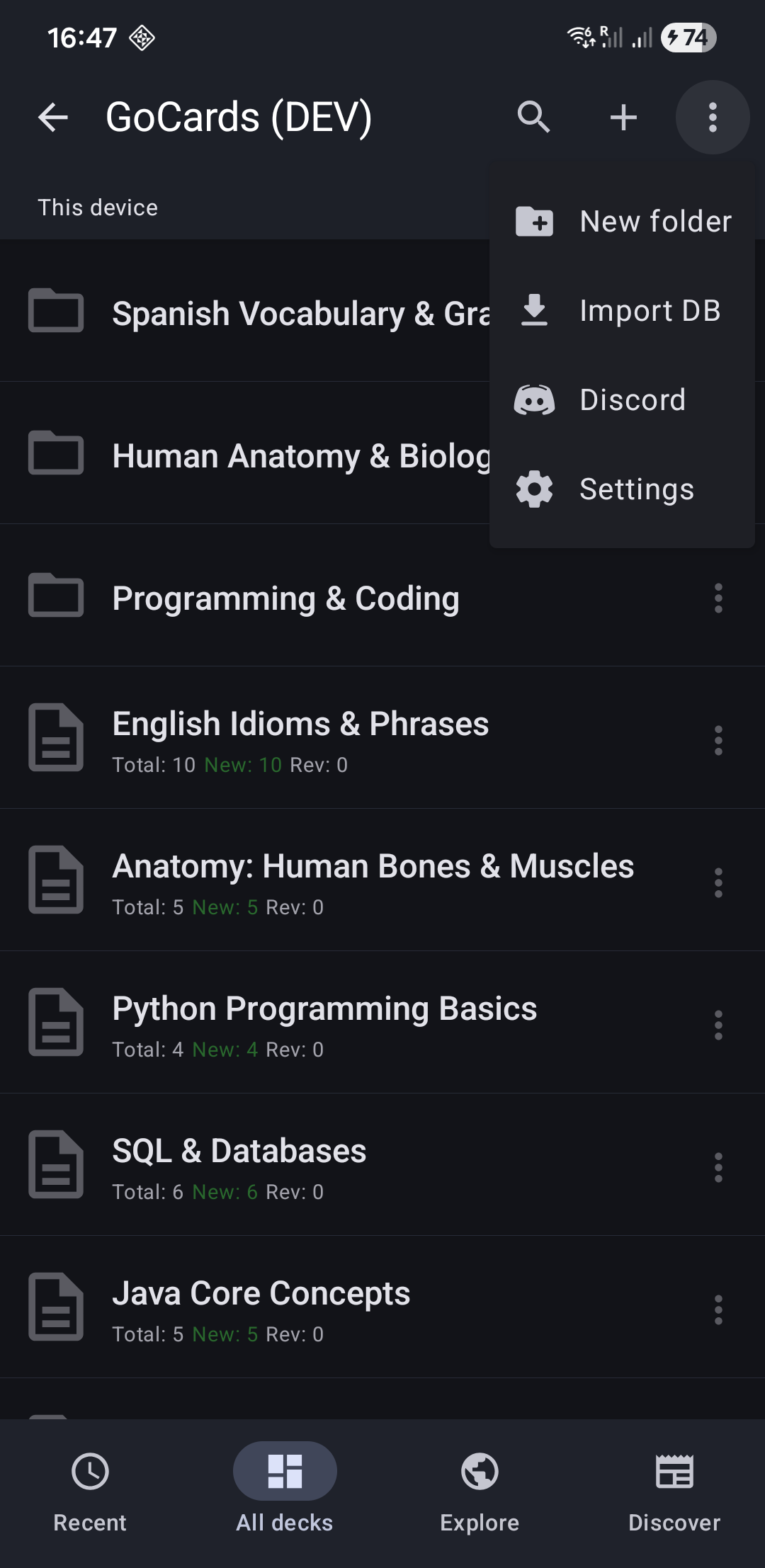
To import a database:
- Go to the home screen (Recent Decks or All Decks tab)
- Tap the "⋮" menu (top-right corner) -→ "Import DB"
- Choose the
.dbfile from your device - Decks appear in All Decks list
Best Practices
Recommended Storage Locations
Cloud storage (recommended):
- Google Drive - Automatic cloud backup with version history
- Dropbox - Cross-device sync and easy sharing
- OneDrive - Integrated with Microsoft accounts
Local storage:
- Downloads folder - Then manually transfer to your computer
- Email to yourself - Quick option for small databases
Database vs. Excel/CSV Export
Choose the right export format for your needs:
| Feature | Database Export (.db) | Deck Export (Excel/CSV) |
|---|---|---|
| All cards | ✅ Yes | ✅ Yes |
| Learning progress | ✅ Yes | ❌ No |
| Review intervals | ✅ Yes | ❌ No |
| Deck settings | ✅ Yes | ❌ No |
| Term/Definition ratio | ✅ Yes | ❌ No |
| Font size settings | ✅ Yes | ❌ No |
| Editable on computer | ❌ No | ✅ Yes |
| Sync with file | ❌ No | ✅ Yes |
When to Use Database Export
- Creating complete backups with all progress
- Transferring data to a new device
- Taking snapshots before major changes
- Preserving your learning history
When to Use Excel/CSV Export
- Editing cards in Excel or Google Sheets
- Sharing deck content with others (without progress)
- Syncing cards between devices using files
- Bulk editing card content
Related Topics
- Import Cards from Excel/CSV - Add cards from spreadsheets
- Export Cards to Excel/CSV - Save cards for editing
- Sync Cards with Files - Keep cards in sync with Excel/CSV