What the AI Can Do
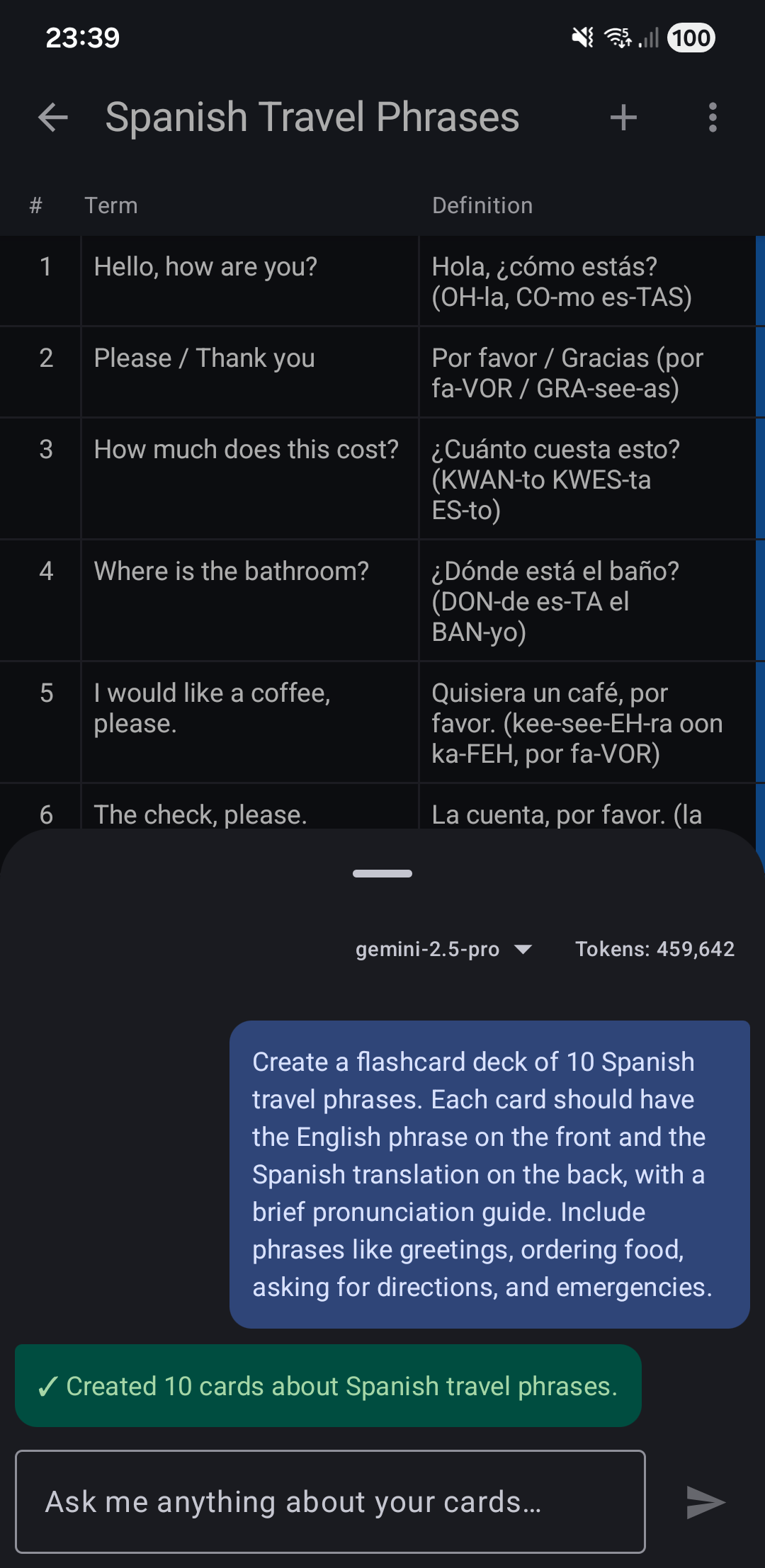
The AI Assistant is a chat panel available inside any deck. You can ask it to:
- Create cards — describe a topic and the AI generates term/definition pairs and adds them directly to your deck
- Update cards — ask to rephrase, expand, or correct existing cards
- Delete cards — remove cards by describing which ones to remove
- Suggest improvements — ask for feedback on card quality or coverage
The AI is aware of your deck name and existing cards, so it can infer the topic without extra instructions.
How to Open the AI Assistant
- Open any deck (tap it from the Deck List)
- Tap the AI floating button in the bottom-right corner of the screen
The chat panel opens as a bottom sheet overlay — your card list stays visible behind it.
Access Options
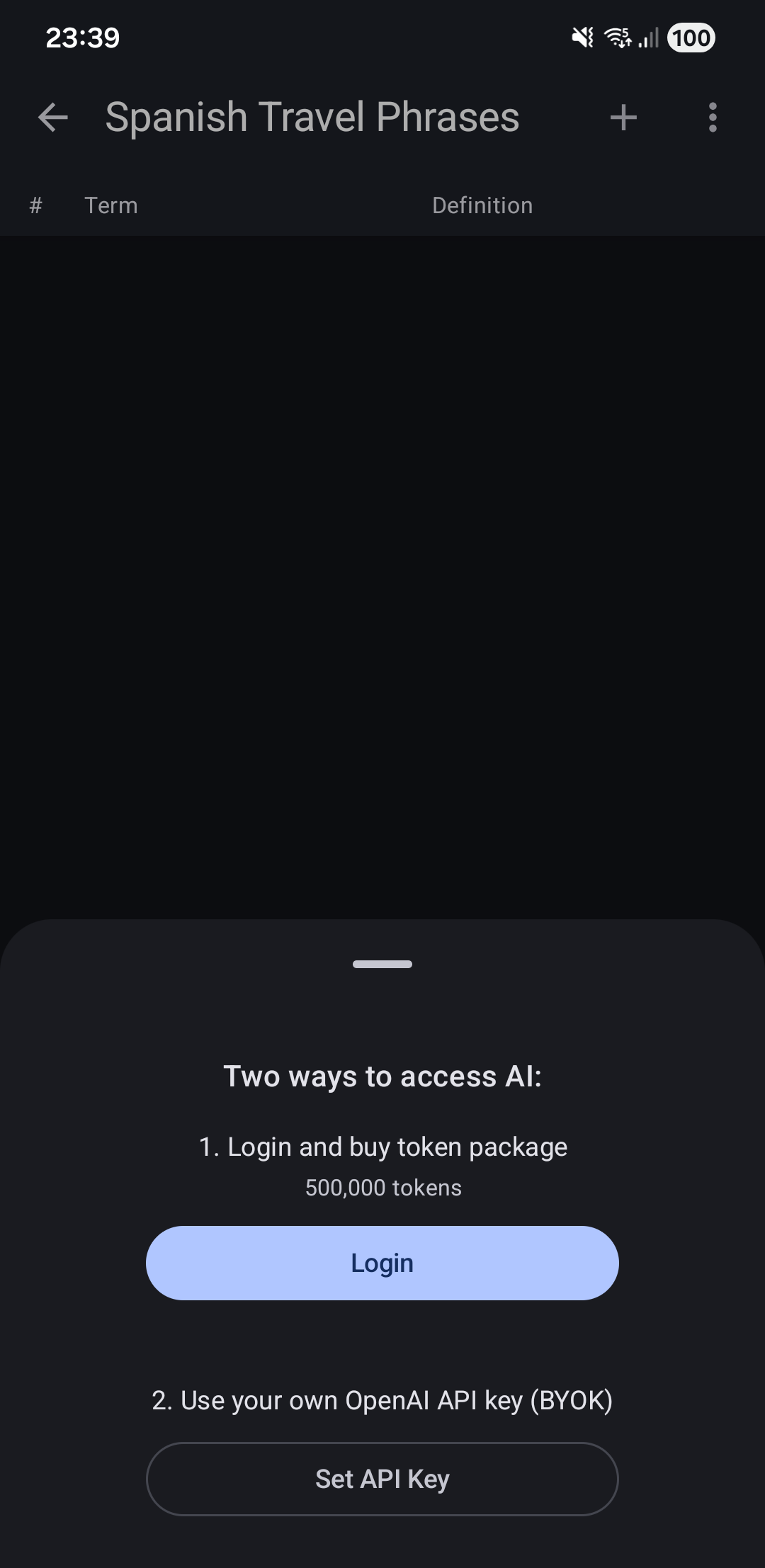
There are two ways to use the AI:
Option 1 — Token Package (Gemini)
- Tap Login inside the AI panel
- Sign in with your Google account
- Tap Buy Tokens to purchase a package of tokens
- Start chatting — tokens are deducted automatically per message
The token balance is shown at the top of the chat panel. You can buy additional packages any time your balance is low.
Device requirements for purchasing: The app must be installed from Google Play on a certified, non-rooted Android device with security updates within the last year. This is required by Google Play Integrity API to prevent fraud.
Option 2 — Your Own OpenAI API Key (BYOK)
Use your own OpenAI account and API key — no login to GoCards required.
- Go to Settings → App Settings → OpenAI API Key
- Paste your OpenAI API key
- Open the AI panel in any deck and start chatting
Charges are billed directly to your OpenAI account.
Related Topics
- Edit Card - Manually add or edit cards
- App Settings - Set your OpenAI API key
- Getting Started - Create your first deck