How to Access the Edit Screen
You can edit cards from three locations:
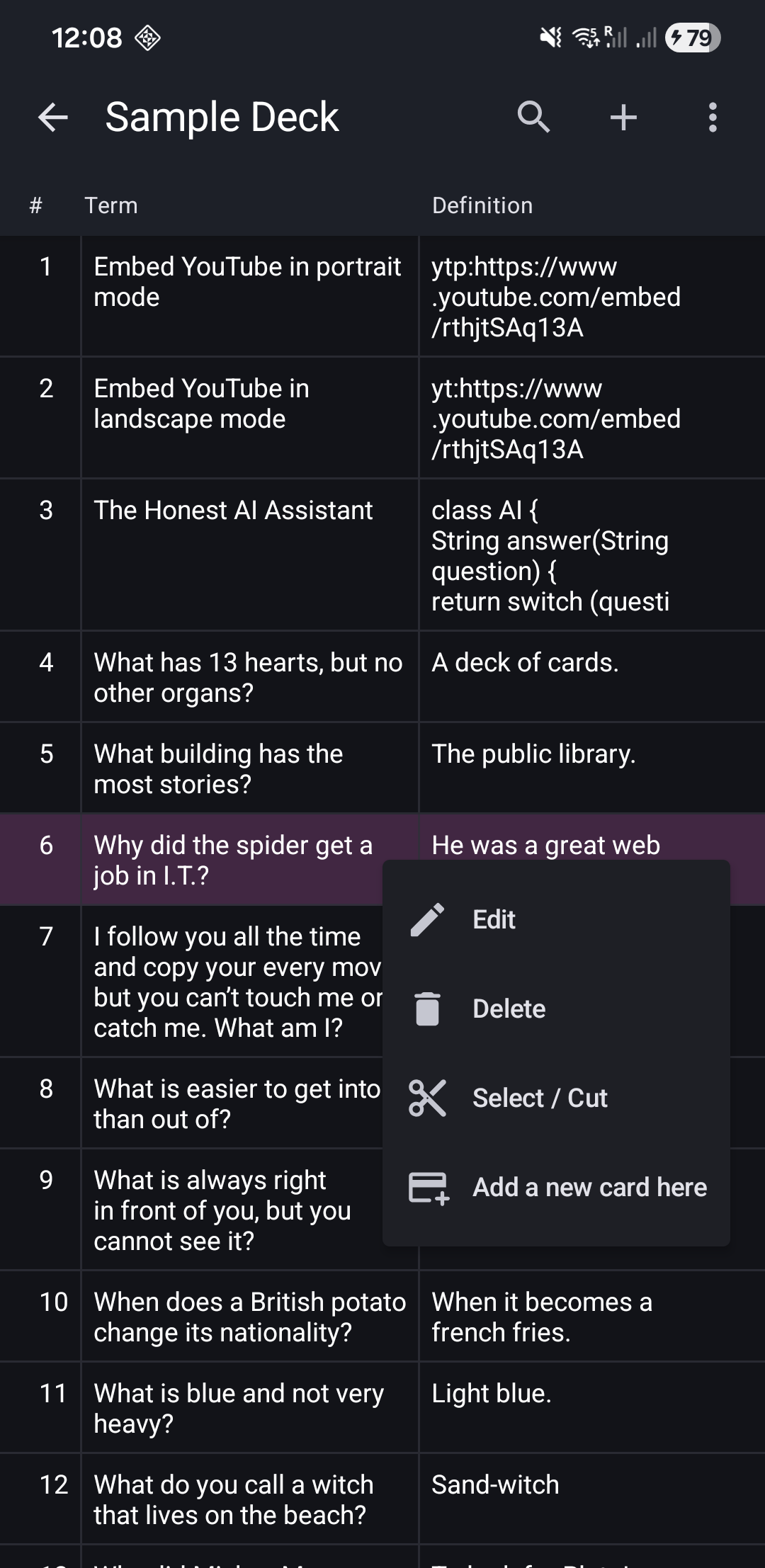
1. From Cards List
Tap any card and "Edit" from the popup menu.
2. From Study Mode
Tap the "Edit" from the top app bar
3. From Browse Mode (Premium feature)
Tap the "Edit" from the top app bar
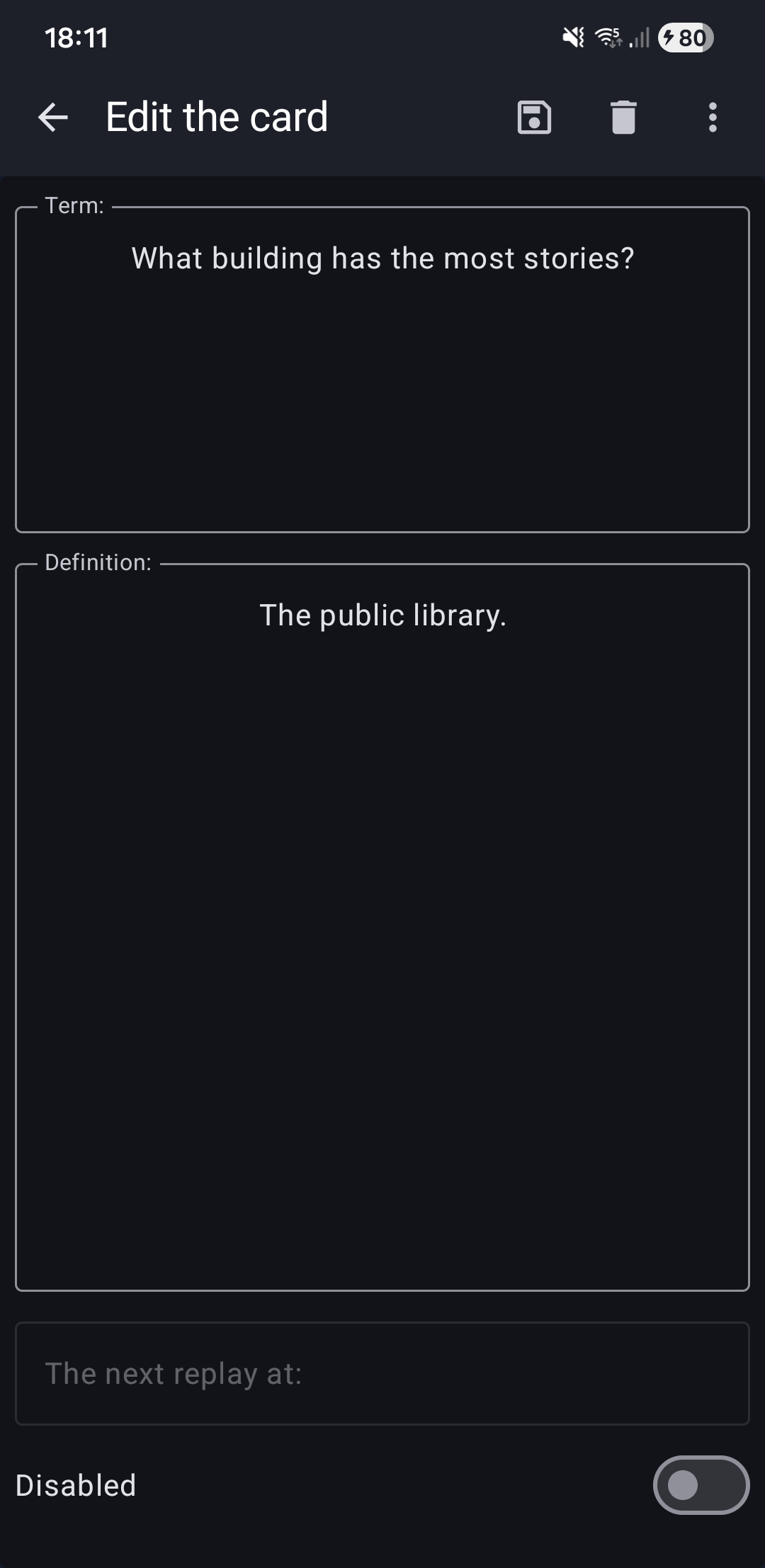
Topbar Actions
On the topbar, you can see the following actions:
- 💾 Save - Save your changes to the card
- 🗑️ Delete - Remove this card from your deck
- ⋮ More menu:
- + Create new card - Add another card to this deck
Note: Your learning progress (review history, due dates, intervals) remains unchanged when you edit a card.
Related Topics
- HTML Formatting - Add rich content to your cards
- Code Syntax Highlighting - Display code blocks with colors
- Add Card - Create new flashcards
- Delete Card - Remove unwanted cards