Deleting Single Cards
Method 1: Swipe to Delete (Fastest)
Swipe a card left or right to quickly delete it.
Method 2: Card Menu
Tap a card -> Select "Delete"
Deleting Multiple Cards
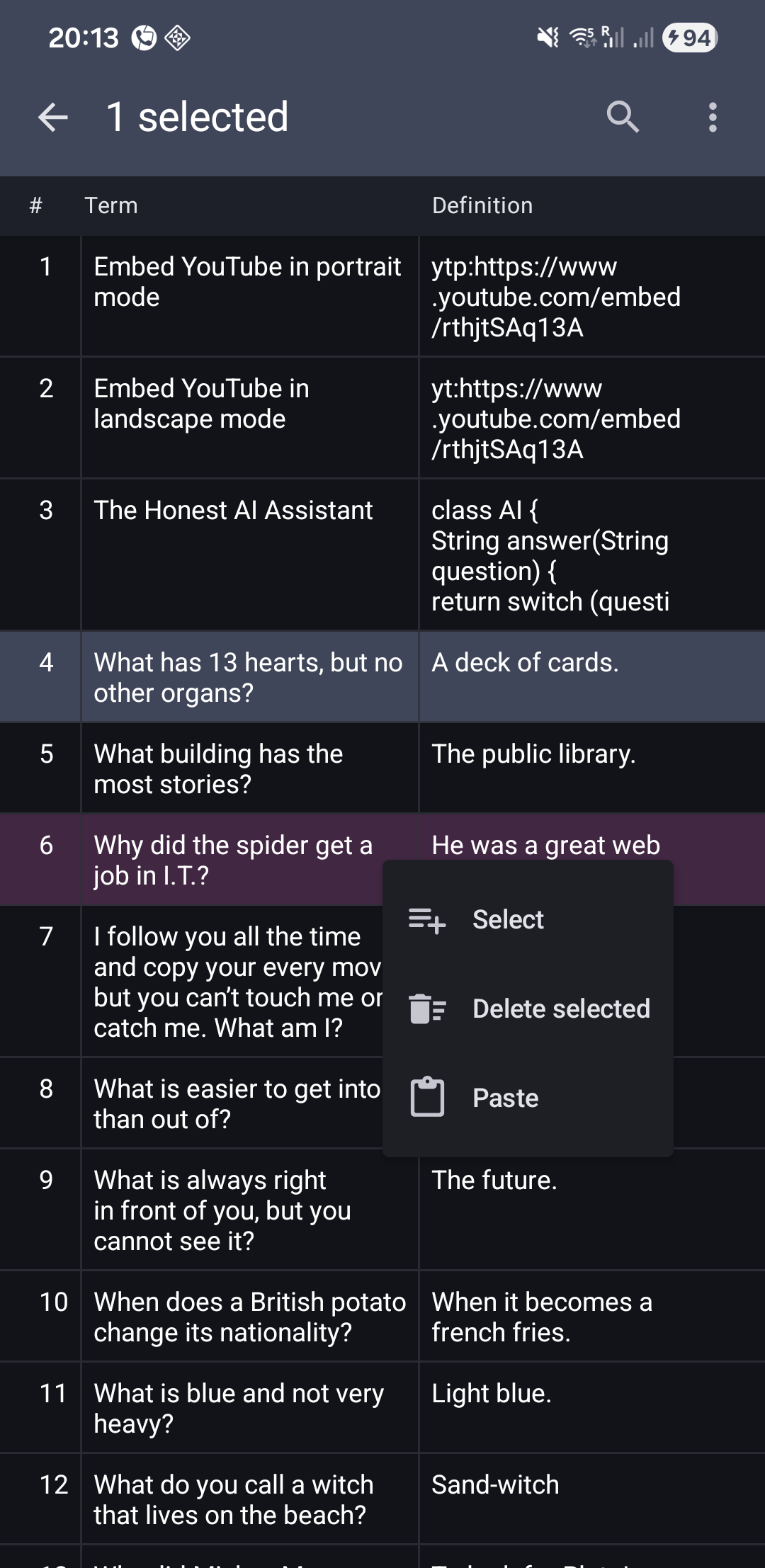
- Long-press a card to enter selection mode
- Tap additional cards to add them to the selection
- Long-press a selected card to open the popup menu
- Tap Delete selected
- All selected cards are removed, with an option to undo
See Multi-Select Mode:
Related Topics
- Multi-Select - Select and delete multiple cards
- Delete Card - Delete from study or edit mode
- Undo Last Action - Restore deleted cards
- Cards List - Main card management features