Entering Multi-Select Mode
Method 1: Card Menu
- Tap a card
- Select "Select / Cut" from the menu
Method 2: Long-Press
- Long-press any card to instantly enter multi-select mode
Working with Selected Cards
Selecting and Deselecting
- Tap any card to add it to your selection
- Tap a selected card again to deselect it
- Selected cards will be visually highlighted
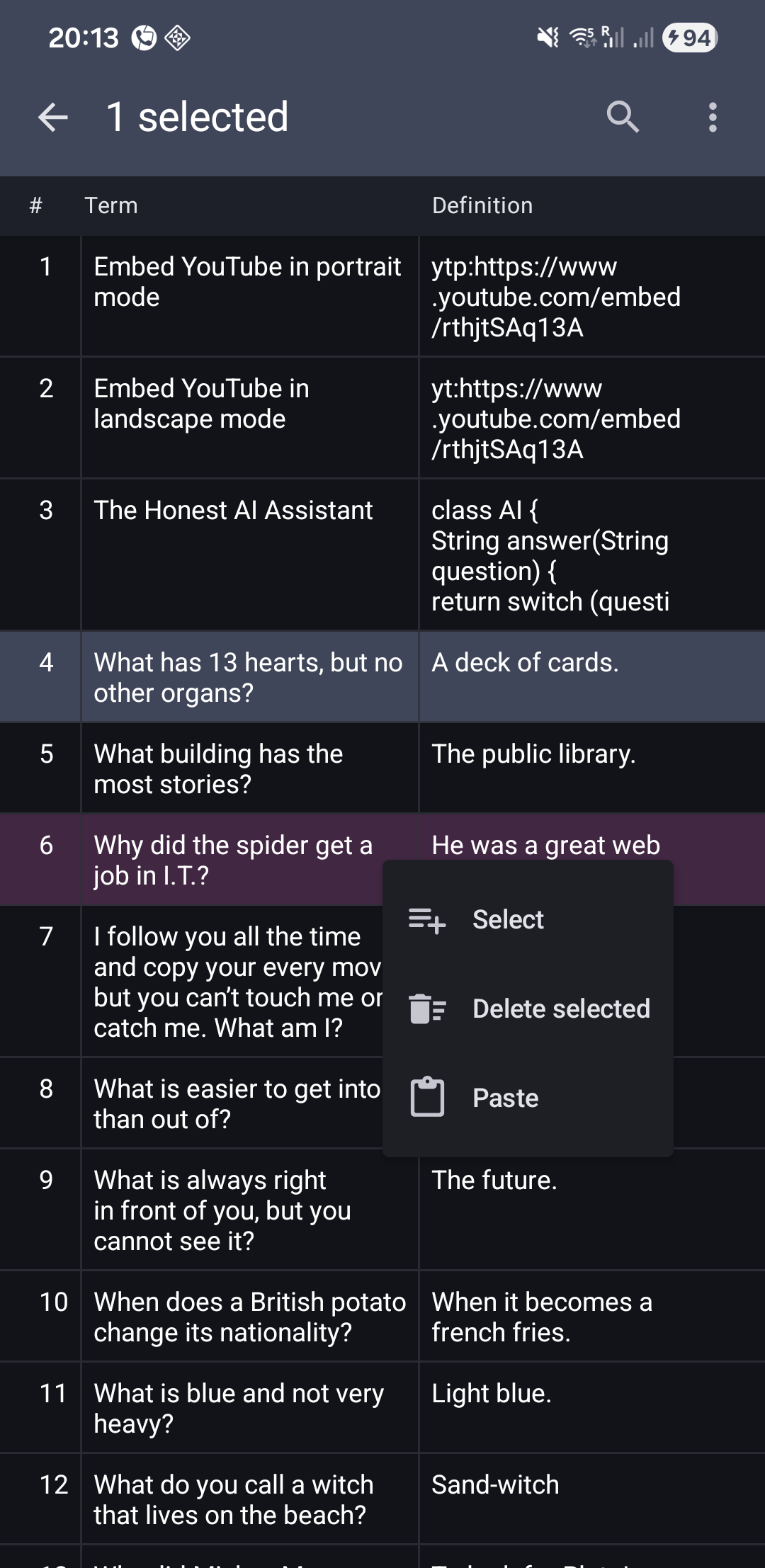
Multi-Select Actions Menu
While in multi-select mode, long-press any card to open the action menu:
- Select – Select subsequent cards in the list
- Delete selected – Permanently remove all selected cards
- Paste – Move all selected cards to appear after the long-pressed card
Exiting Multi-Select Mode
Tap the back arrow (←) in the toolbar to deselect all cards and return to normal browsing mode.
Important Limitations
⚠️ Deck-Specific Operations – Cut and paste operations only work within the same deck. You cannot cut cards from one deck and paste them into a different deck.
Related Topics
- Reorder Cards - Drag-and-drop single cards
- Delete Cards - Bulk delete operations
- Cards List - Main card management features