How to Delete a Card
GoCards provides multiple ways to delete cards, all with undo support so you never lose a card by accident.
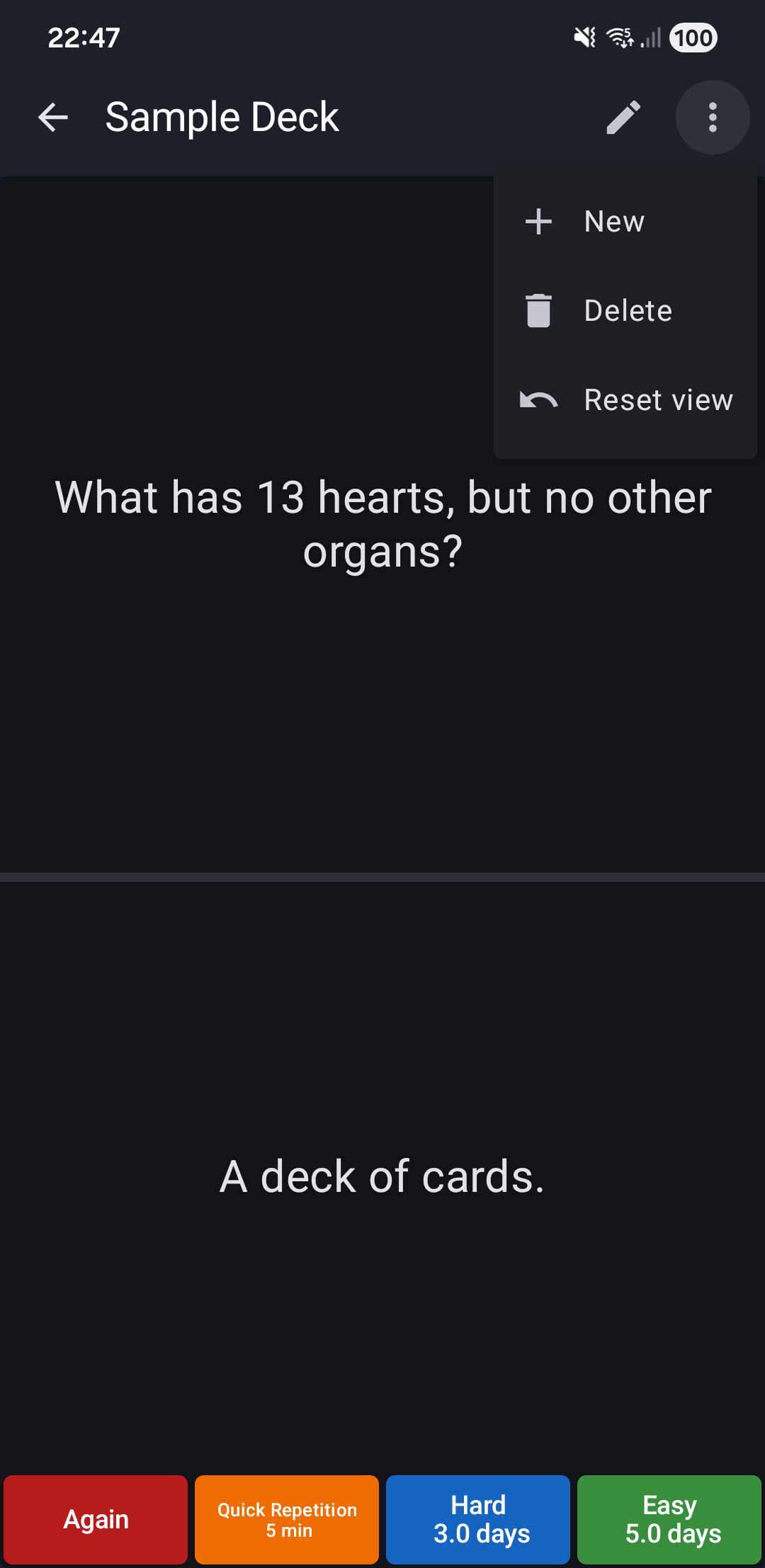
From Study Mode
- While studying, tap the 🗑 ️Delete icon in the toolbar
- The card is removed and the next card appears
- Tap ↩️ "Restore" in the snackbar or press ⬅️ Back to undo
From Edit Mode
- While editing a card, tap the 🗑️ Delete icon
- Card is removed immediately
- Use the snackbar or ⬅️ Back button to restore
From Cards List
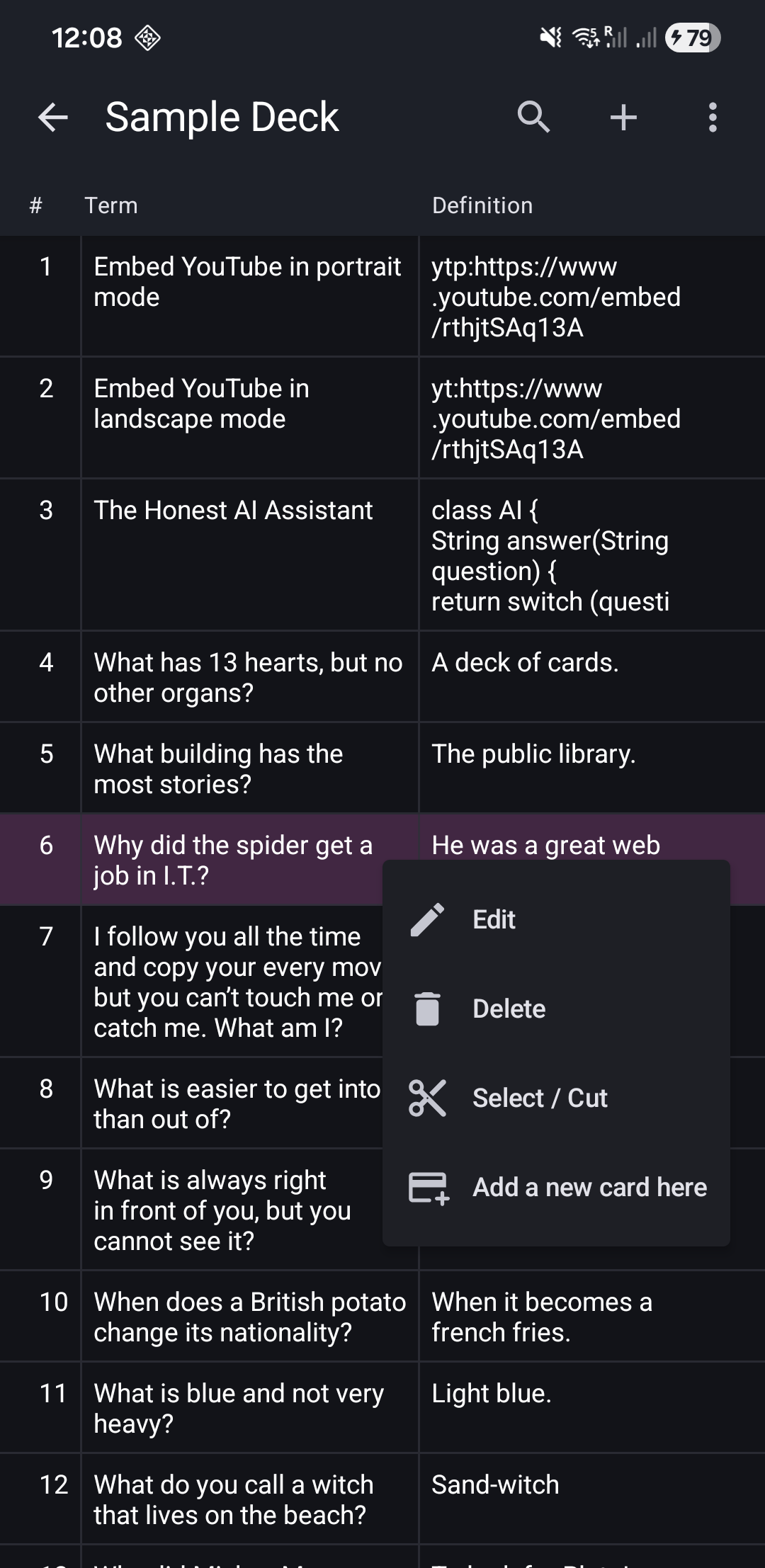
Method 1: ⋮ Popup Menu
- Tap any card to open its menu
- Select "Delete"
- Card is removed with a snackbar showing ↩️ "Restore" option
Method 2: 👆 Swipe to Delete
- Swipe any card left or right
- Card is deleted instantly
- Tap ↩️ "Restore" in the snackbar to undo
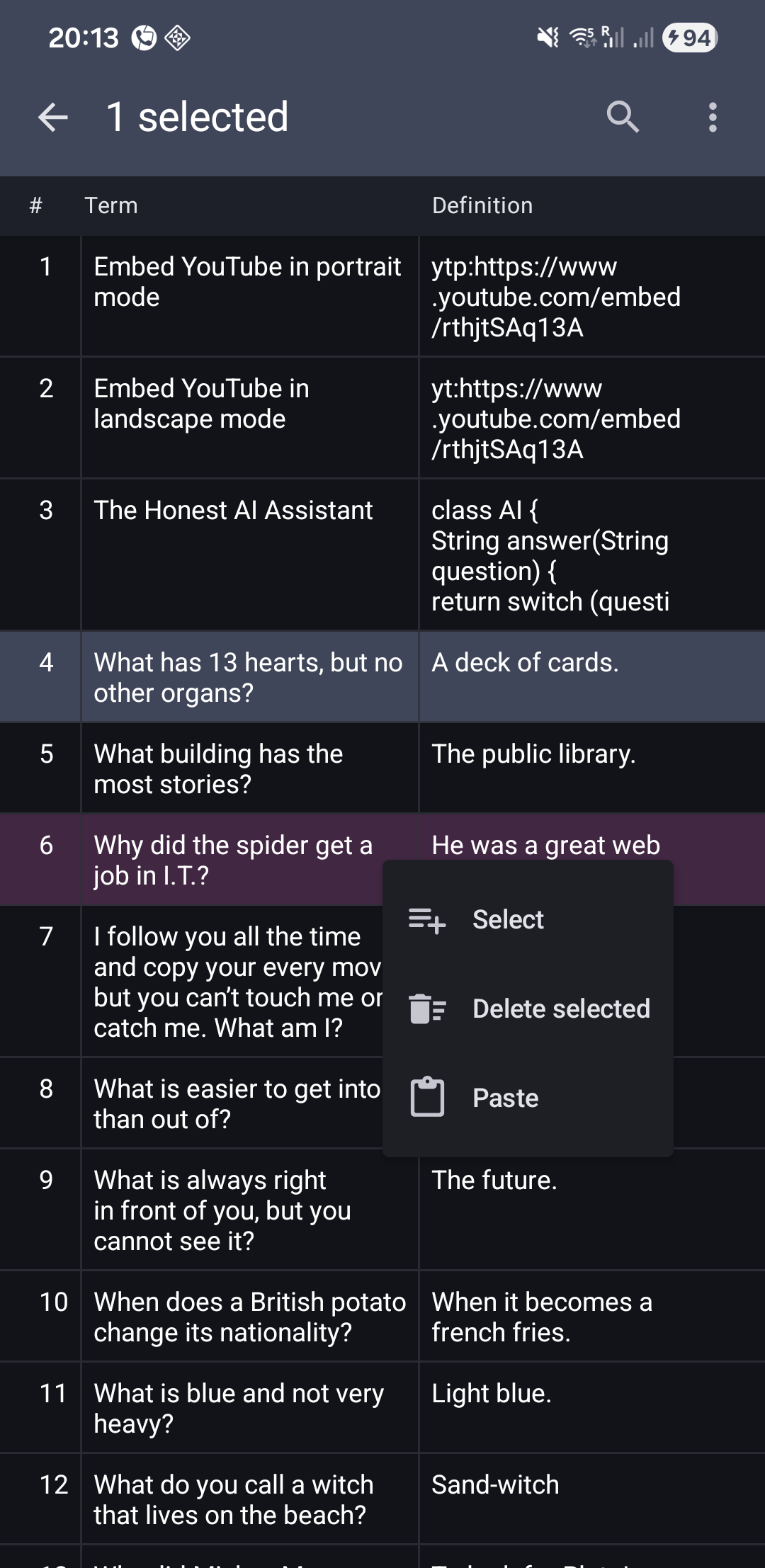
Method 3: ☑️ Bulk Delete
- Long-press a card to enter selection mode
- Tap additional cards to select them
- Tap the Delete icon in the toolbar
- All selected cards are removed with undo option
Undo Options
GoCards uses an undo-first approach instead of confirmation dialogs, making deletion quick while still safe:
| Method | How to Undo |
|---|---|
| 💬 Snackbar | Tap ↩️ "Restore" in the message that appears after deletion |
| ⬅️ Back button | Press back immediately after deleting (Study/Edit mode) |
Note: The undo option is available for a short time after deletion. Act quickly if you need to restore a card.
Related Topics
- Multi-Select - Delete multiple cards at once
- Cards List - Manage all cards in your deck
- Undo Last Action - General undo functionality
- Add Card - Create new cards to replace deleted ones