How to Add a New Card
You can add cards from several places in the app:
From Cards List
Method 1: Add at the end of deck
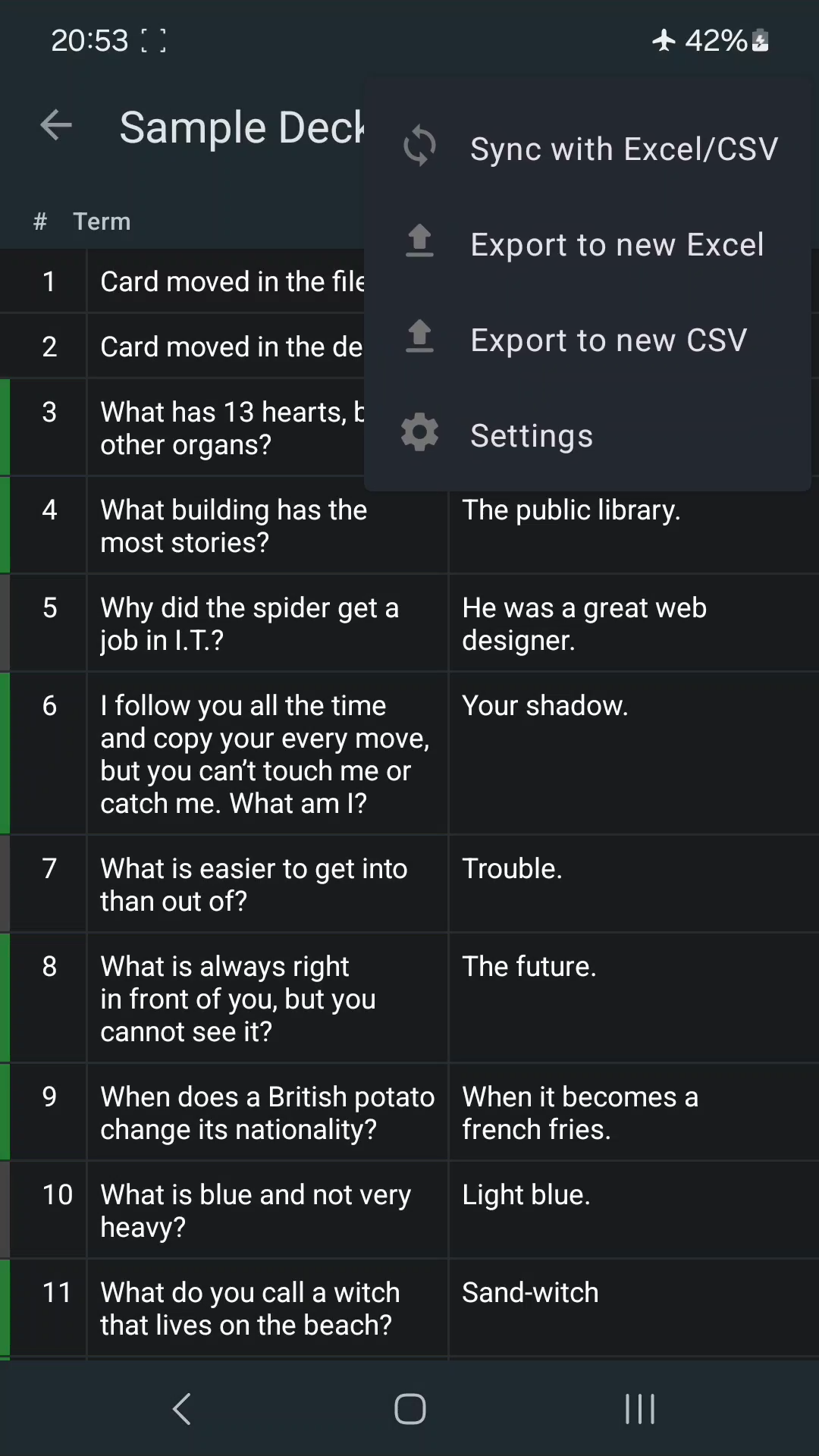
- Open your deck's Cards List (tap "⋮" on a deck → "List Cards")
- Tap the "+" button in the top toolbar
- Enter your card content and tap Save
Method 2: Insert at a specific position
- In Cards List, tap any card to open its menu
- Select "Add a new card here"
- The new card will be inserted after the selected card
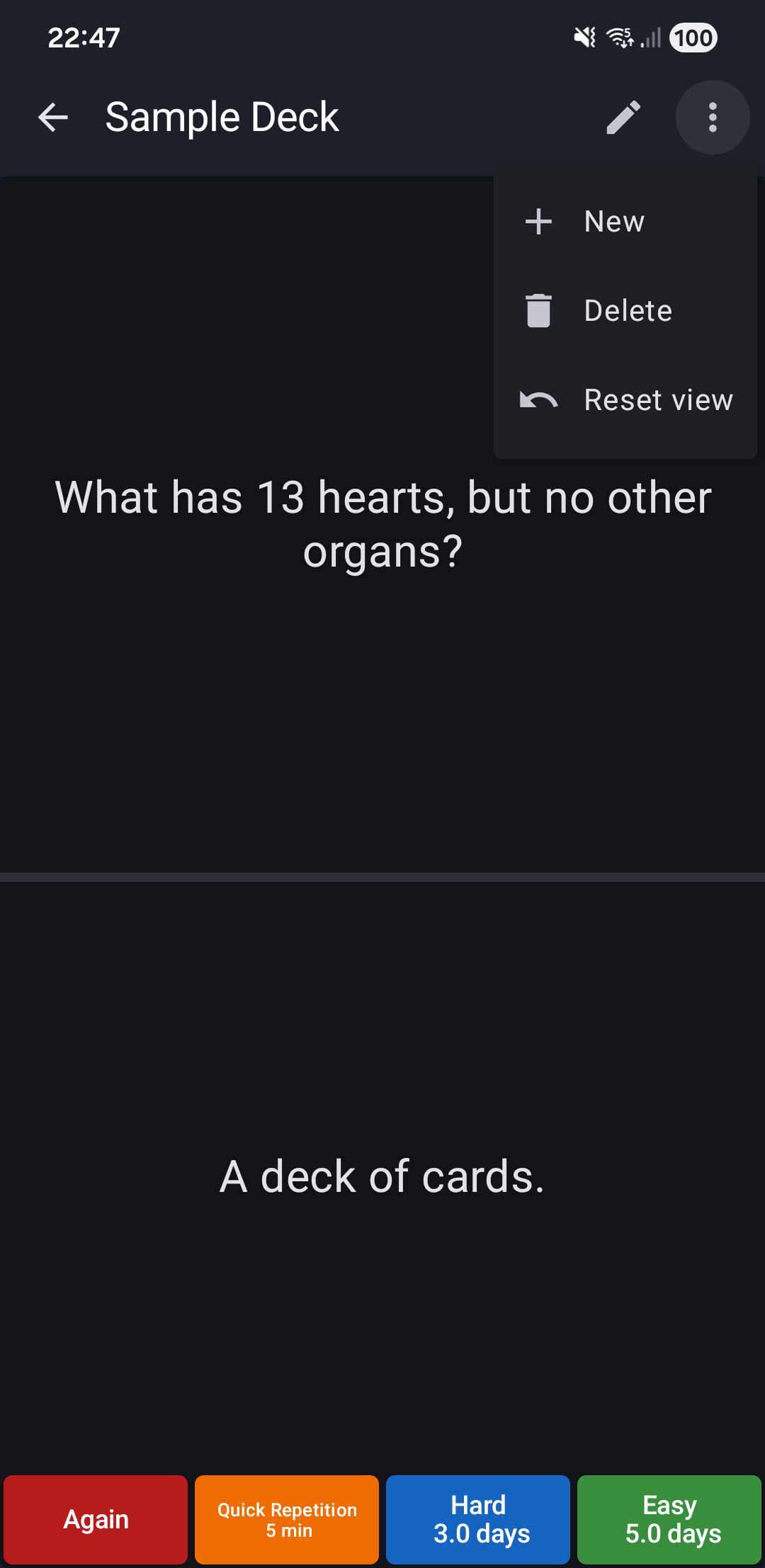
From Study Mode or Edit Card Screen
- Tap the "⋮" menu in the top toolbar
- Select "New" card
- Enter your content and save
Toolbar Actions
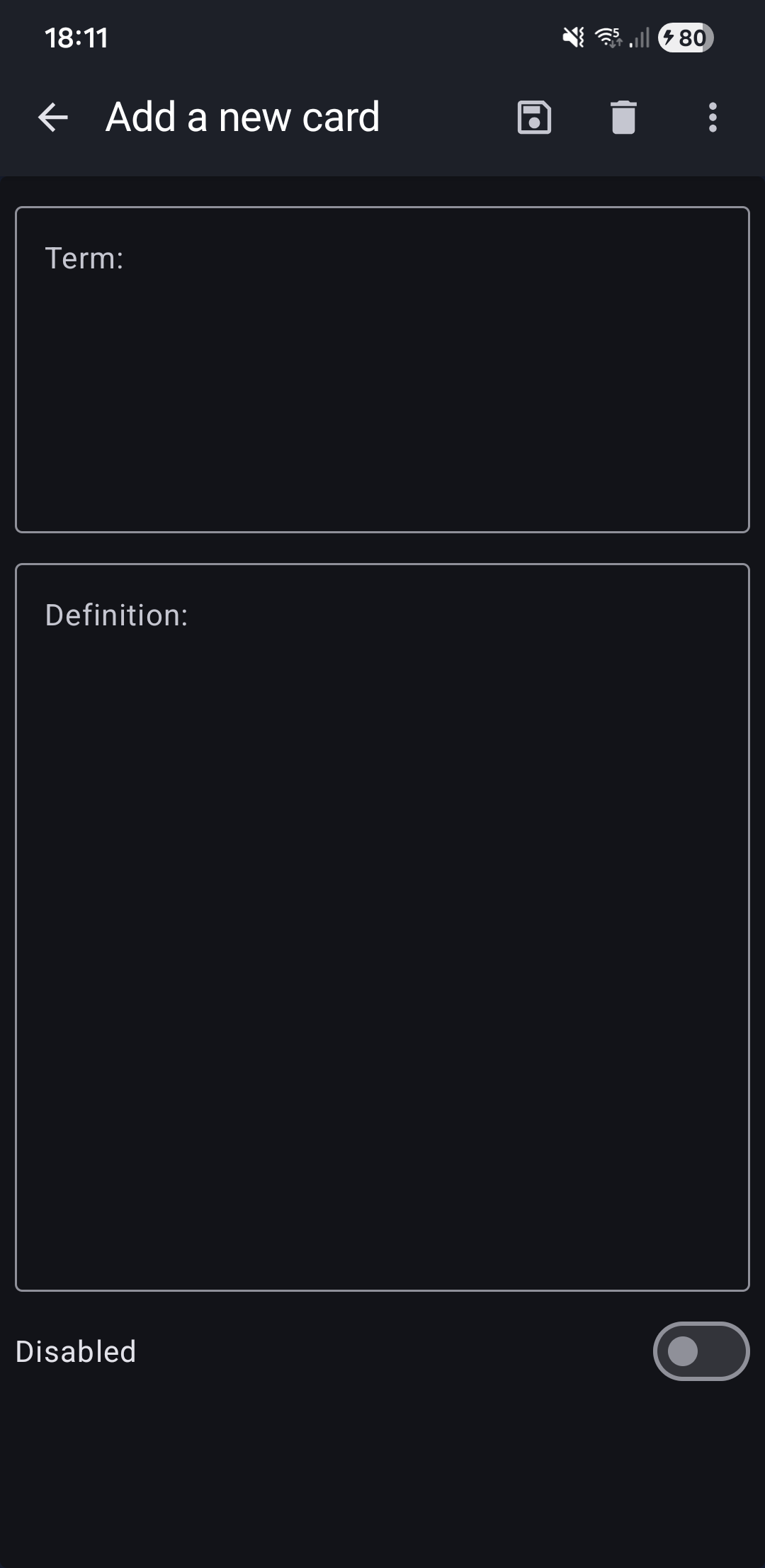
While adding a card, the toolbar provides:
- 💾 Save - Save the new card to your deck
- 🗑️ Delete - Discard the card without saving
- ⋮ More menu:
- New card - create another new card
Related Topics
- Edit Card - Modify existing cards
- Delete Card - Remove unwanted cards
- HTML Formatting - Add rich content to new cards
- Cards List - View and manage all your cards