Opening Cards List
From the home screen:
- Tap "⋮" on a deck to open the deck menu.
- Select "List Cards"
You'll see all your cards in a scrollable list/grid view.
Card List Display
Each card shows:
- # - Card number, ordinal position
- Term - front of card
- Definition - back of card
- Edge Bars (left or right) - Colored bars indicate card status
- Max lines - Configurable in Deck Settings
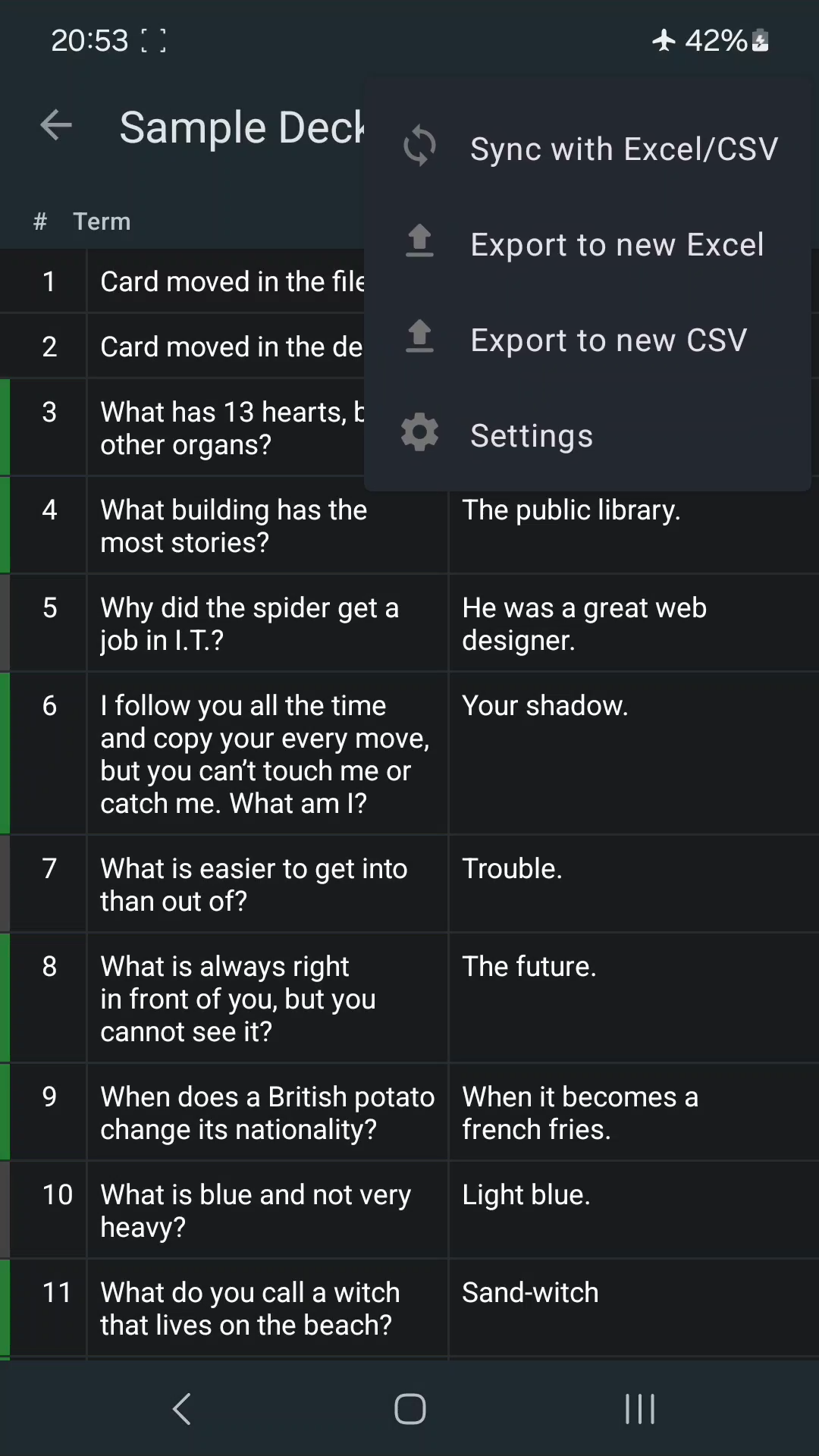
Toolbar Actions
- 🔍 Search (Premium feature) - Filter cards by term or definition text
- + Add Card - Add a new card at the of deck
- ⋮ More Menu:
Card Actions
Tap a Card
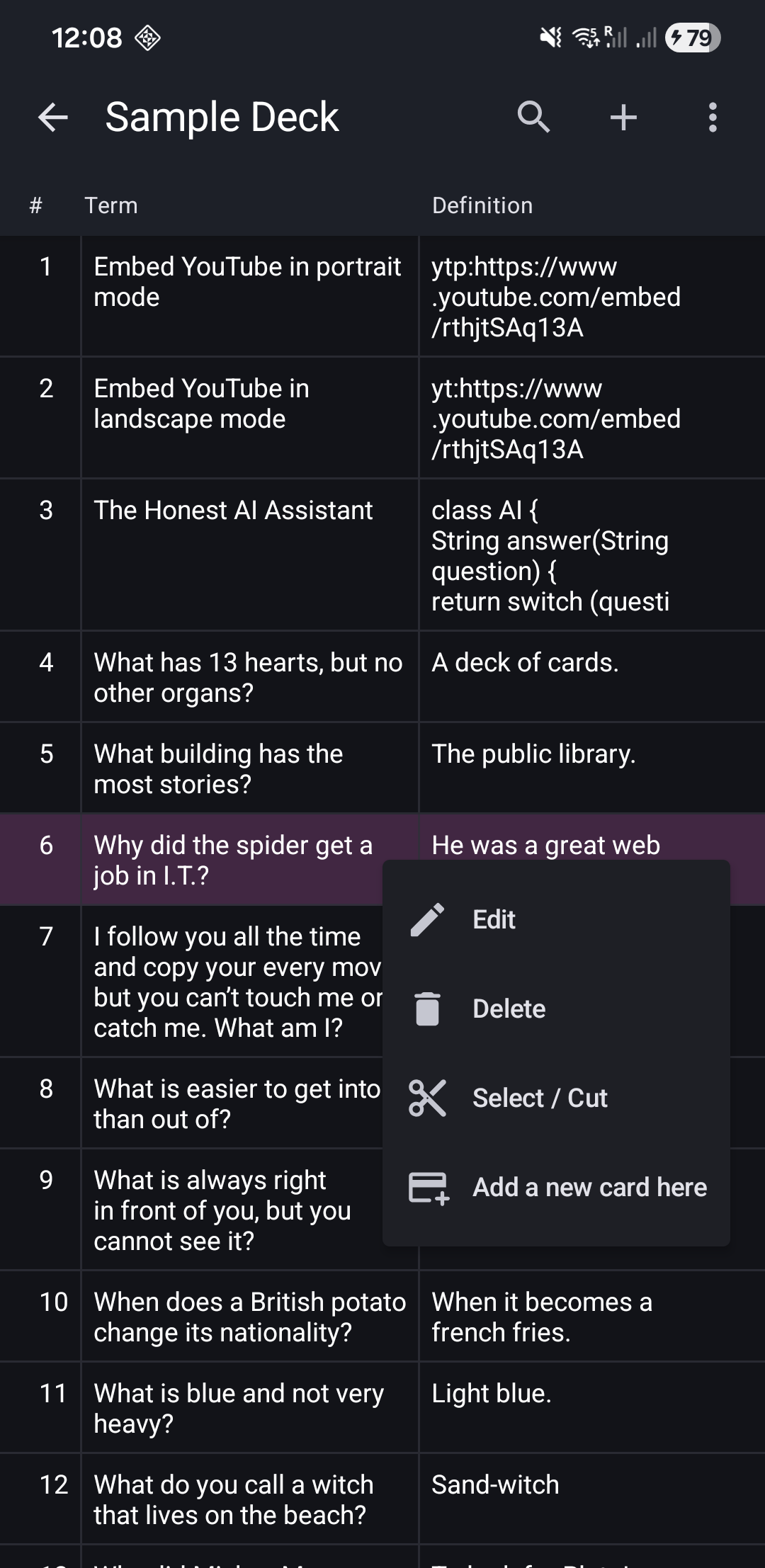
Tap a Card opens the card's action menu:
- ✏️ Edit - Modify term/definition
- 🗑️ Delete - Remove this card
- ✂️ Select / Cut - Enter multi-select mode
- ➕ Add a new card here - Insert a new card after this position
Long-Press a Card
Long-Press a Card select the card and switch to the multi-select mode.
See Multi-Select Cards for details.
Swipe a Card (Left or Right)
Swipe to delete - Card disappears with undo option
See Deleting Cards for details.
Card Operations
The Cards List supports these operations:
| Operation | How To | Details |
|---|---|---|
| Popup Menu | Tap | |
| Reorder | Long-press & drag | Reordering Guide |
| Select | Long-press | Multi-Select Guide |
In the selection mode:
| Operation | How To |
|---|---|
| Select next card | Tap |
| Popup Menu | Long-press |
Related Topics
- Search Cards - Find specific cards quickly
- Reorder Cards - Organize your deck with drag-and-drop
- Multi-Select - Bulk operations on multiple cards
- Edge Bars - Understand status indicators
- Delete Cards - Remove unwanted cards